Steps
Add Site Insights to ChatGPT, step by step.
Use Claude as well? The same link works there: how to connect Google Analytics to Claude.
- Step 1
Open Plugins in ChatGPT
On chatgpt.com in your browser, open Plugins in the left sidebar. Click Add in the top right corner and choose Add custom MCP server.
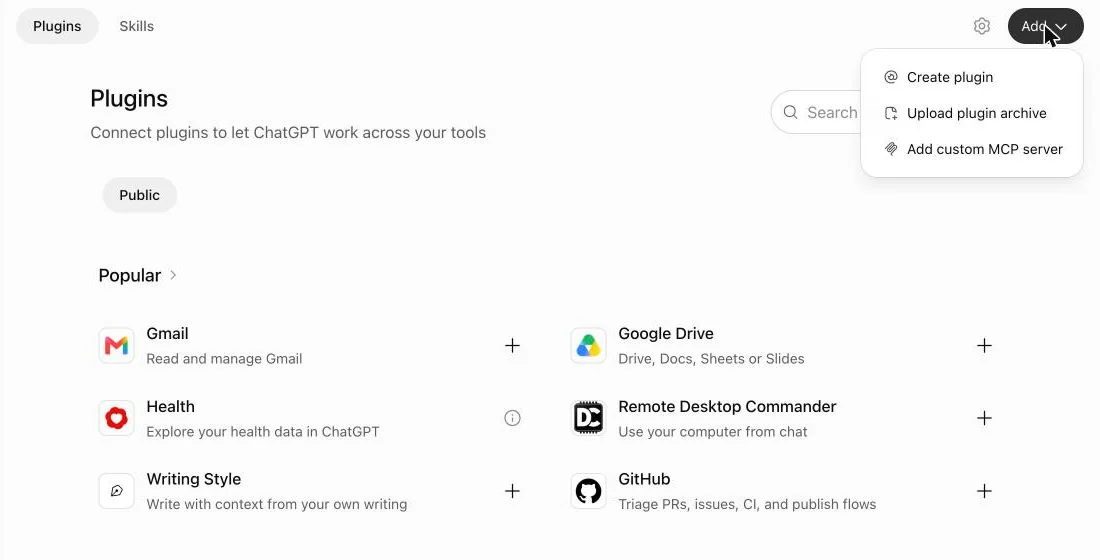
ChatGPT Plugins with Add open and Add custom MCP server in the menu. Example details only. - Step 2
Fill in the form
Type the name, add a description if you like, and paste the address as the Server URL. Authentication shows OAuth: keep it. You do not need the Advanced OAuth settings.
Name
Site Insights by KKV LabsDescription (optional)
Google Analytics 4 and Search Console for every site you manage. Read only.Server URL
https://insights.kkvlabs.com/mcp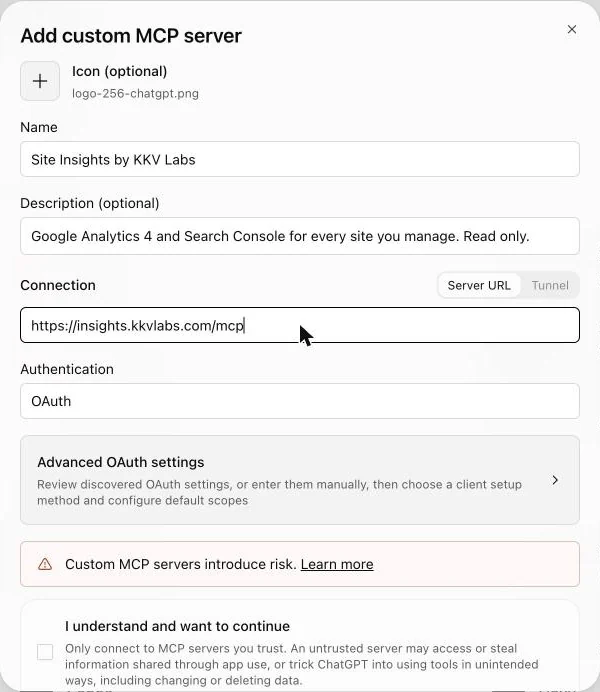
Add custom MCP server form with the name, description, server URL and OAuth filled in. Example details only. - Step 3
Confirm and create the plugin
Tick I understand and want to continue, then click Create as a plugin. A Site Insights sign in page opens.
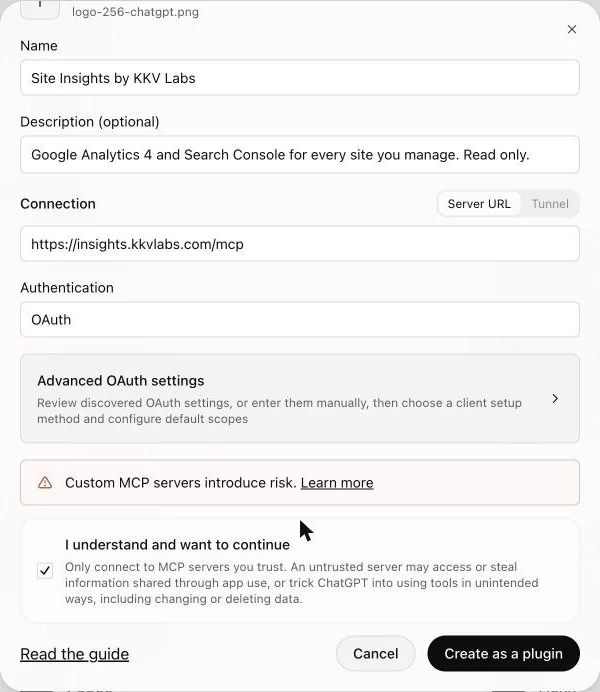
The I understand and want to continue box ticked, with the Create as a plugin button. Example details only. - Step 4
Sign in with Google
On the Site Insights page, click Continue with Google. Choose the Google account that can see your Analytics and Search Console.
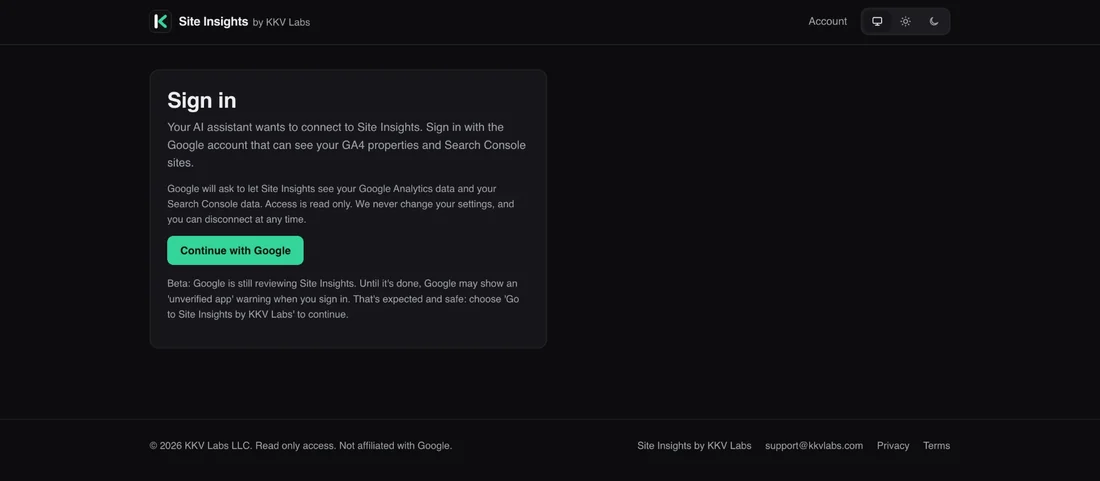
Site Insights sign in page with the Continue with Google button. Example details only. 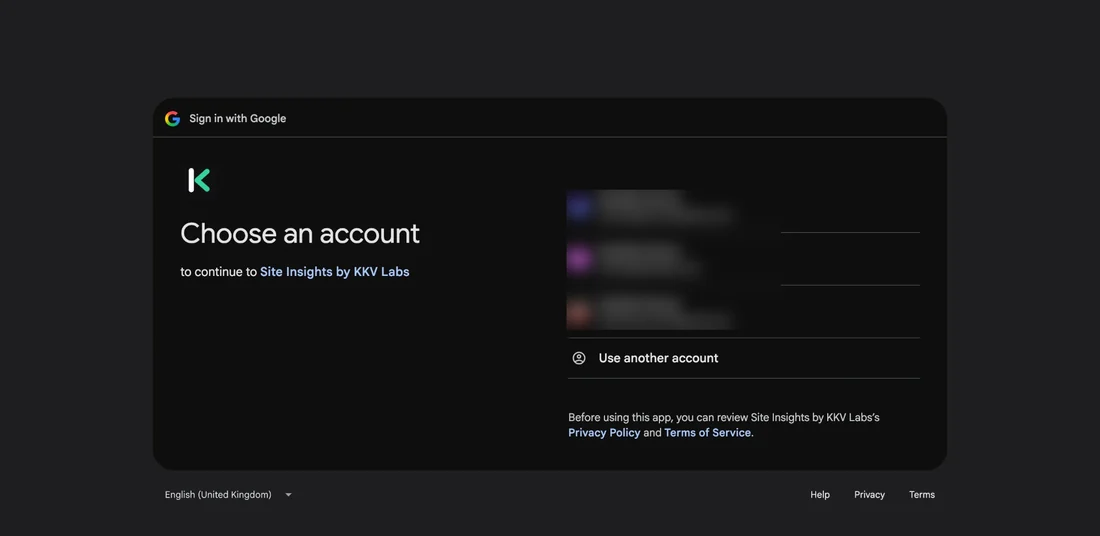
Google asks which account to continue to Site Insights by KKV Labs with. Example details only. - Step 5
Get past Google's warning and allow access
If Google shows Google hasn't verified this app, choose Go to Site Insights by KKV Labs (unsafe). Then click Continue.
Google lists the two read only permissions: see and download your Google Analytics data, and view Search Console data for your verified sites. Click Allow.
Beta note: Google is still reviewing Site Insights. Until it's done, Google may show an 'unverified app' warning when you sign in. That's expected and safe: choose 'Go to Site Insights by KKV Labs' to continue. Access stays read only, and you can disconnect at any time.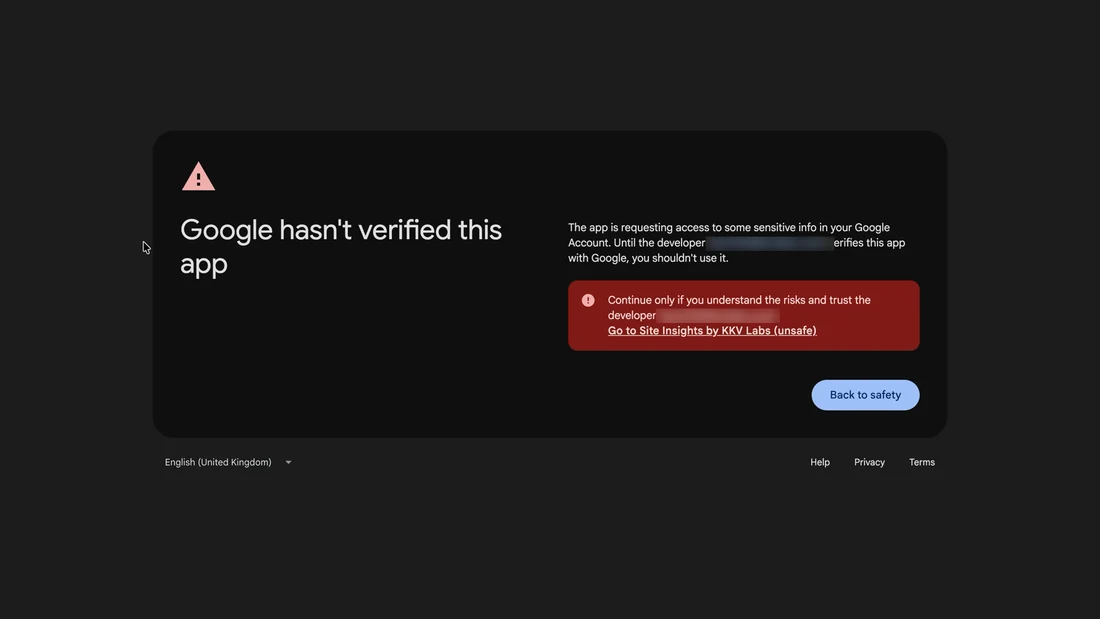
Google hasn't verified this app, with the Go to Site Insights by KKV Labs (unsafe) link. Example details only. 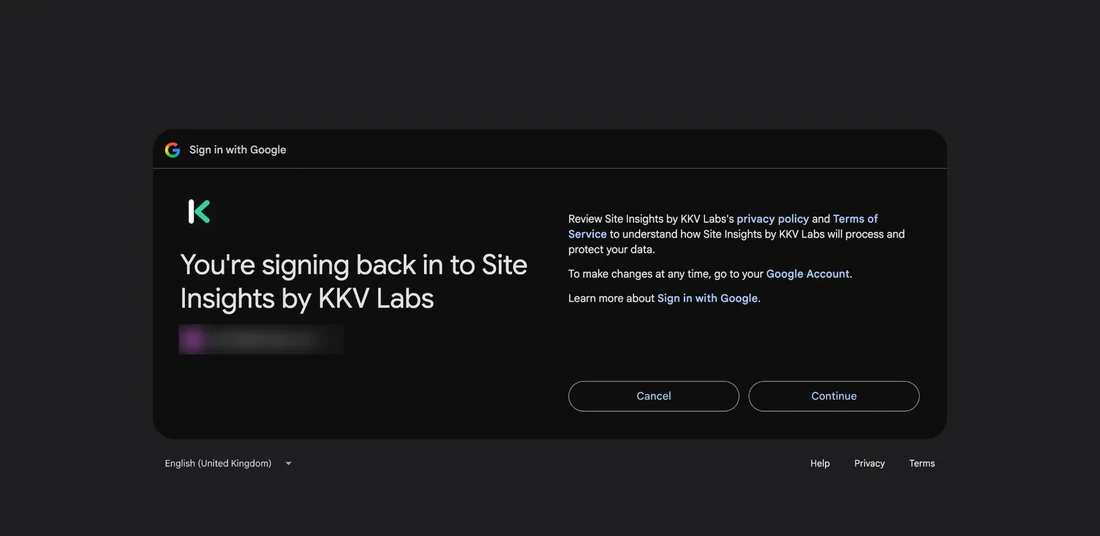
Google asks you to continue signing in to Site Insights by KKV Labs. Example details only. 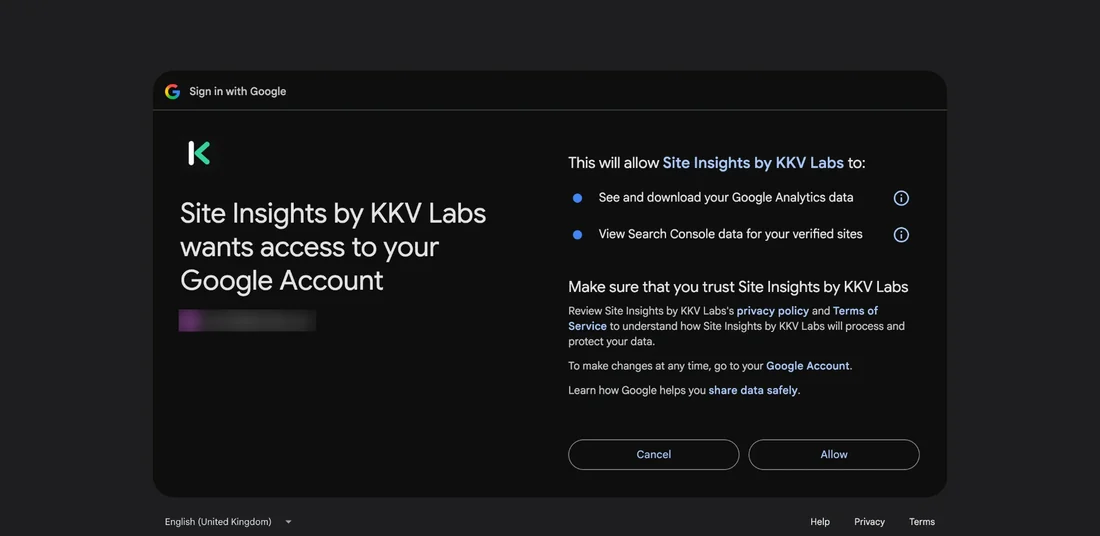
Google lists the two read only permissions with the Allow button. Example details only. - Step 6
Allow ChatGPT
Site Insights asks Allow ChatGPT to use Site Insights? Check the account it names (Not you? lets you switch), then click Allow. You are sent back to ChatGPT.
Under Plugins, Site Insights by KKV Labs now shows as installed.
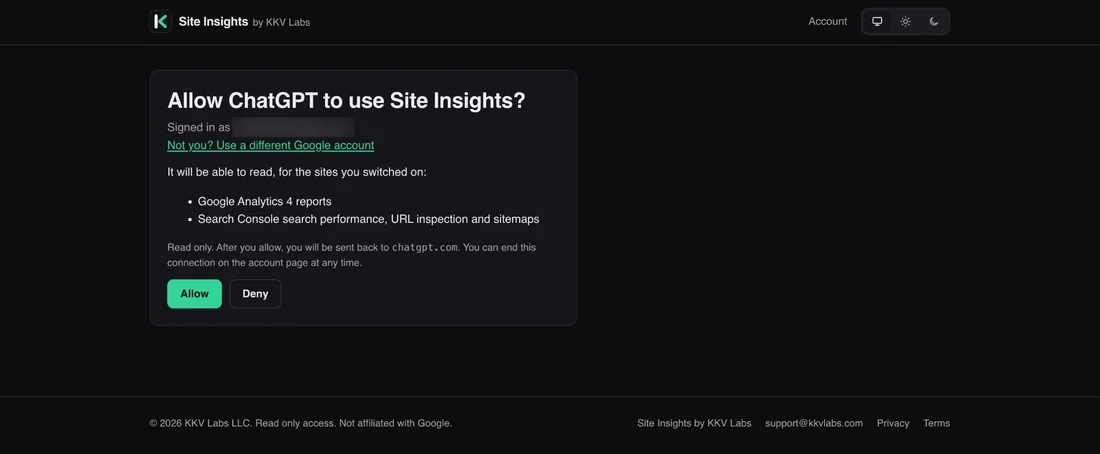
Allow ChatGPT to use Site Insights page with Allow and Deny buttons. Example details only. 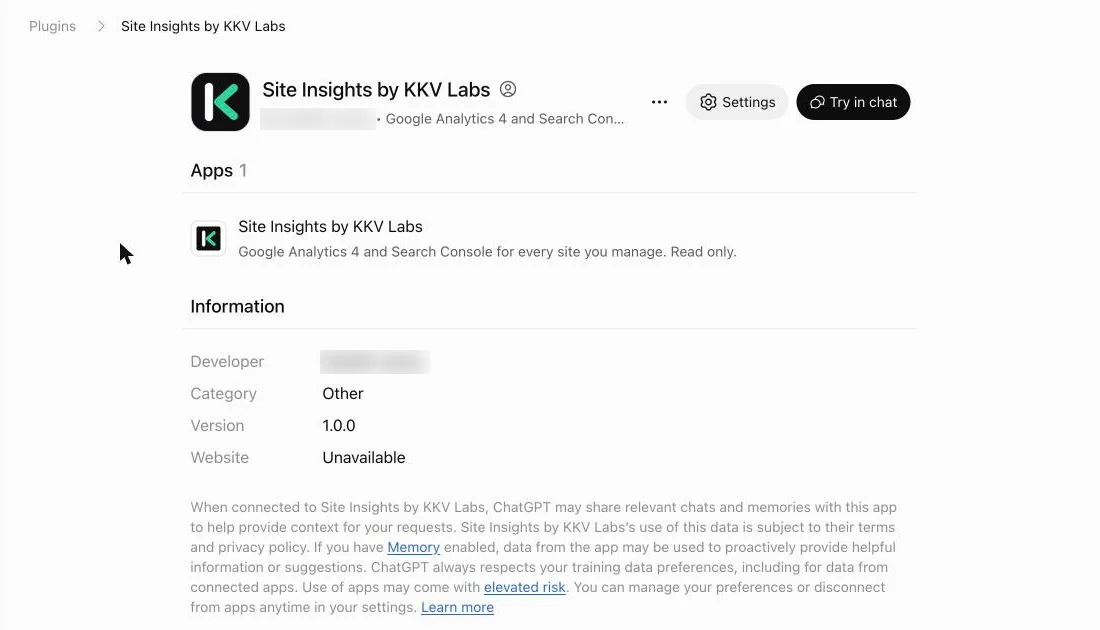
Site Insights by KKV Labs installed under Plugins in ChatGPT, with Try in chat. Example details only. - Step 7
Switch on the sites ChatGPT may read
Open your Site Insights account page. Every GA4 property and Search Console site your Google account can see is listed and paired by domain. Use the switch on the right to turn on the sites ChatGPT may read: 1 on the Free plan, 10 on Pro, 50 on Agency.
Do this before you ask. If no site is switched on, ChatGPT answers that the site is not connected.
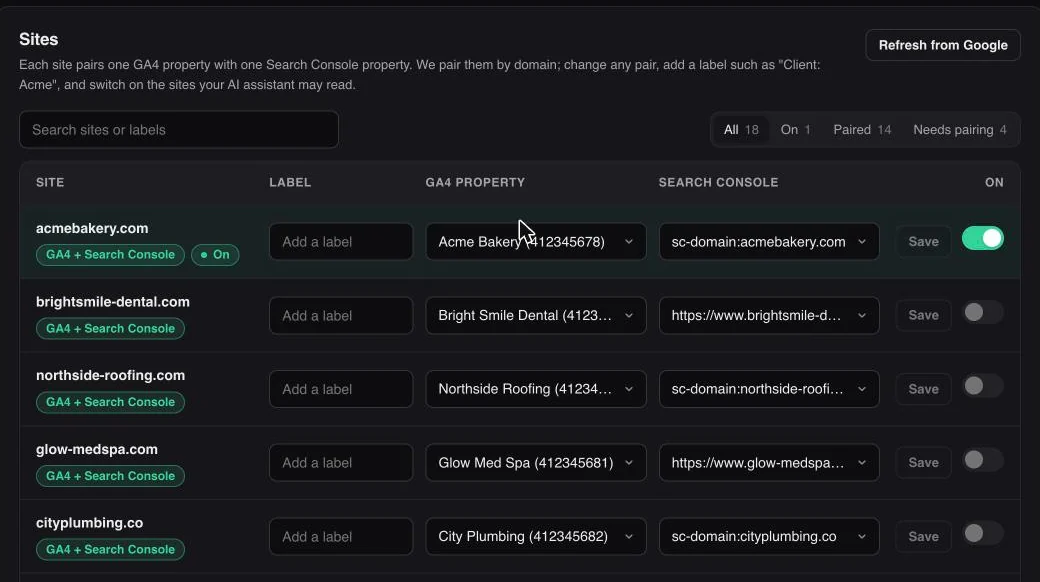
Site Insights sites list with one example site switched on. Example details only.
Use it
Ask your first question.
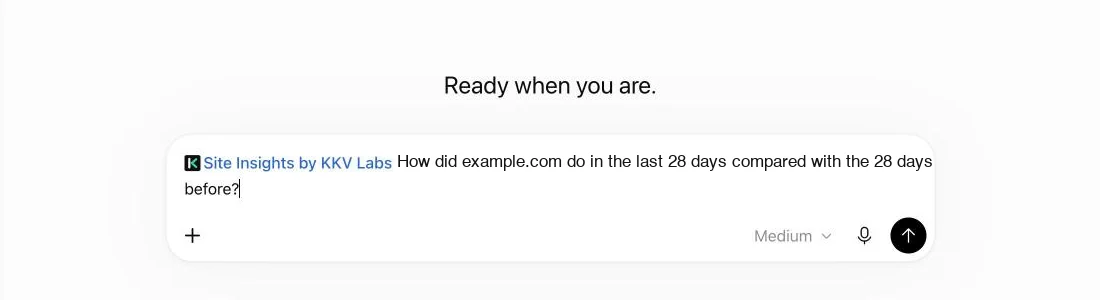
Click Try in chat on the plugin page, or pick Site Insights by KKV Labs in a new chat. Then ask about a site by name or by its label.
Questions to start with
- “How did example.com do in the last 28 days compared with the 28 days before?”
- “Which pages lost the most Google clicks this month, and when did it start?”
- “Show me quick wins: queries where I rank 4 to 20 with a low click through rate.”
- “How many visits came from ChatGPT, Perplexity and other AI assistants?”
- “Compare all my client sites by clicks this month.”
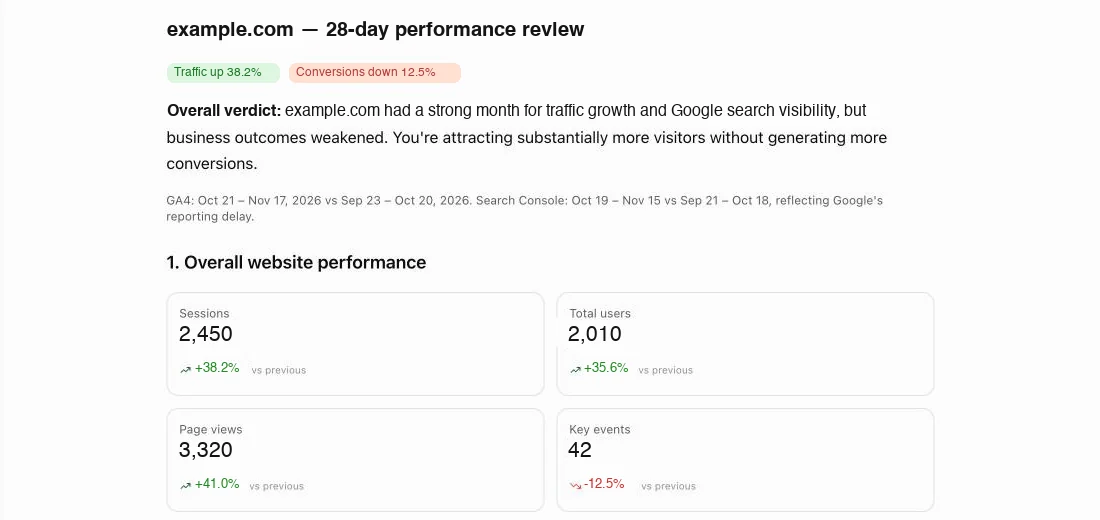
ChatGPT answers with your numbers, the date range and the changes, all calculated by Site Insights so the maths is right. Every tool, with a question to try for each, is on the Google Analytics MCP page. For indexing and Discover, see the Search Console MCP page. To check AI visits by hand first, read how to see ChatGPT traffic in Google Analytics.
Questions
Connecting Google Analytics to ChatGPT: questions.
Which ChatGPT plans can connect Google Analytics?
Can I add it in the ChatGPT mobile app?
Which Google access do I need?
Why does Google say it hasn't verified this app?
ChatGPT says my site is not connected. What now?
Is my data safe?
How do I disconnect?
Something went wrong. Who do I ask?
Start now
Ask your first question in two minutes.
Free for one site, with every tool. Add more sites when you need them.
Already connected? Manage your sites
BetaGoogle is still reviewing Site Insights. Until it's done, Google may show an 'unverified app' warning when you sign in. That's expected and safe: choose 'Go to Site Insights by KKV Labs' to continue.
Site Insights is made by KKV Labs, an AI search agency. Want ChatGPT and Google AI to recommend your business? Get a free AI visibility check.