Steps
Connected in five steps.
The same connector works in Claude on the web and the desktop app: see how to connect Google Analytics to Claude.
- Step 1
Add Site Insights with one command
In your terminal, run this. --scope user makes Site Insights available in every folder on your machine; leave it out to add it to the current project only. There is nothing to install and no Google Cloud project to set up.
Claude Code replies: Added HTTP MCP server site-insights with URL: https://insights.kkvlabs.com/mcp to user config.
Terminalclaude mcp add --transport http --scope user site-insights https://insights.kkvlabs.com/mcp
Terminal after claude mcp add: Added HTTP MCP server site-insights to user config. Example details only. - Step 2
Check it is added
Run claude mcp list. Site Insights shows as Needs authentication. That is expected: you sign in next.
Terminalclaude mcp list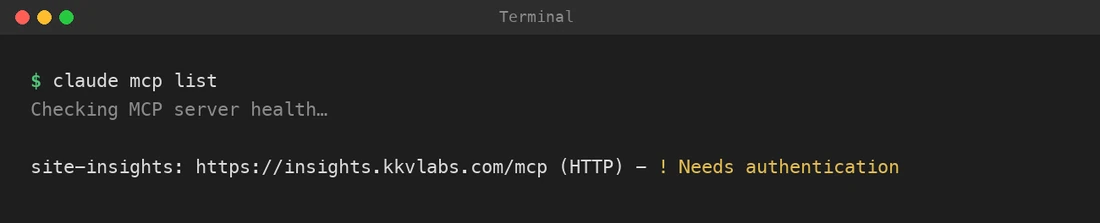
claude mcp list showing site-insights with Needs authentication. Example details only. - Step 3
Sign in with /mcp
Start Claude Code with claude, type /mcp, pick site-insights and choose Authenticate. Your browser opens the Site Insights sign in page.
Click Continue with Google and choose the Google account that can see your Analytics and Search Console. Google lists the two read only permissions: click Allow. Then Site Insights asks Allow Claude Code to use Site Insights? Click Allow.
Beta note: Google is still reviewing Site Insights. Until it's done, Google may show an 'unverified app' warning when you sign in. That's expected and safe: choose 'Go to Site Insights by KKV Labs' to continue. Access stays read only, and you can disconnect at any time.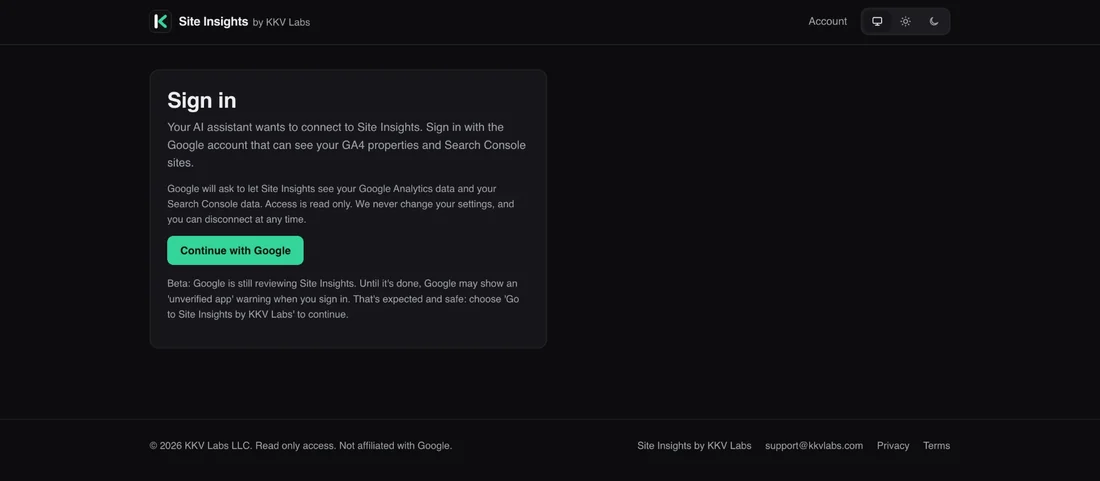
Site Insights sign in page with the Continue with Google button. Example details only. 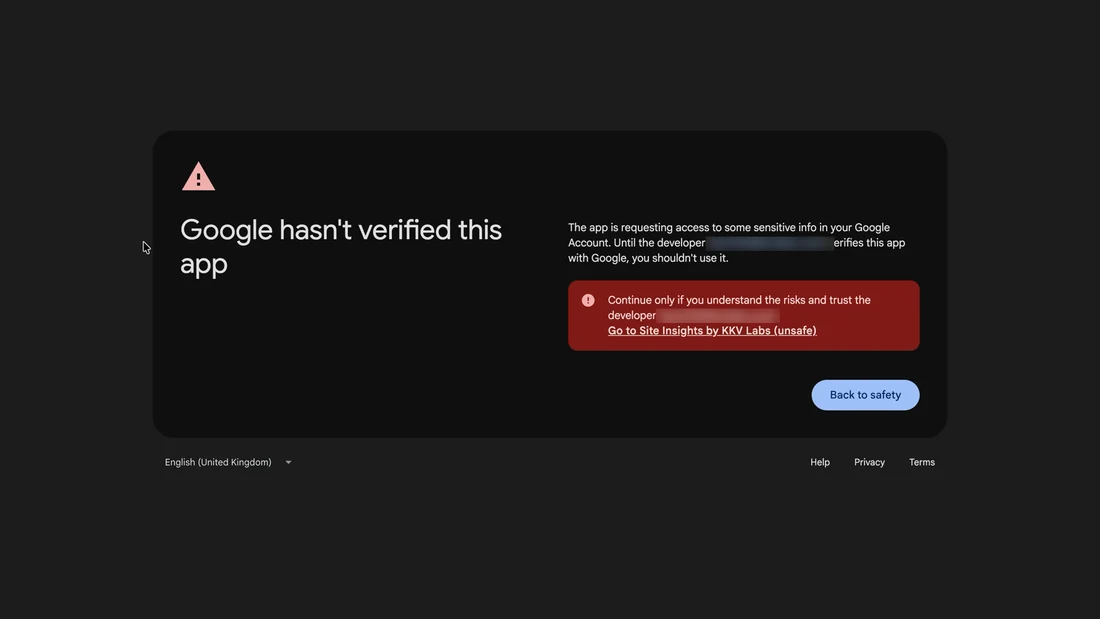
Google hasn't verified this app, with the Go to Site Insights by KKV Labs (unsafe) link. Example details only. 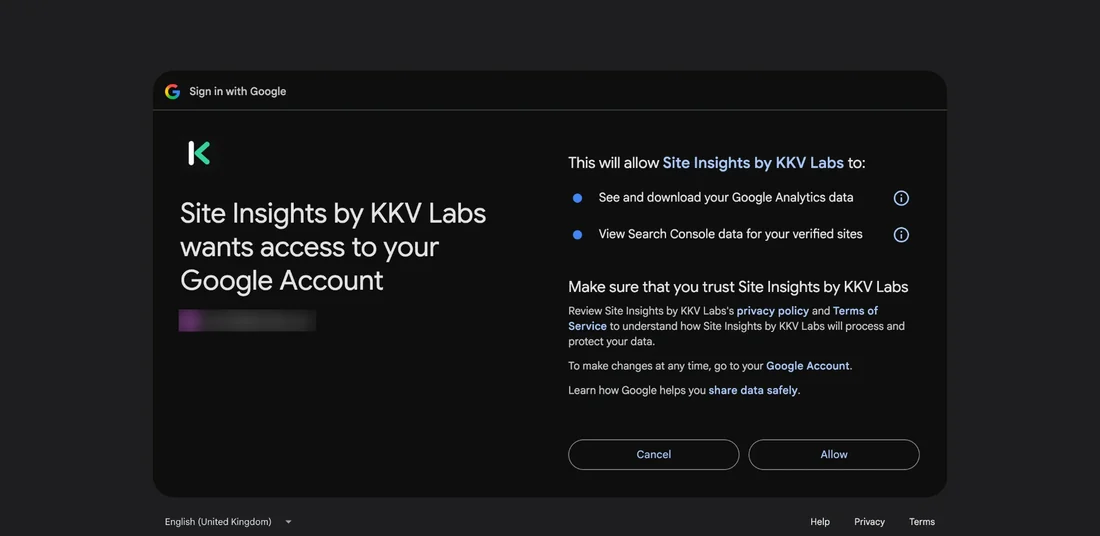
Google lists the two read only permissions with the Allow button. Example details only. - Step 4
Check it is connected
Back in Claude Code you see Signed in and connected to site-insights. Run claude mcp list again: it now shows Connected.
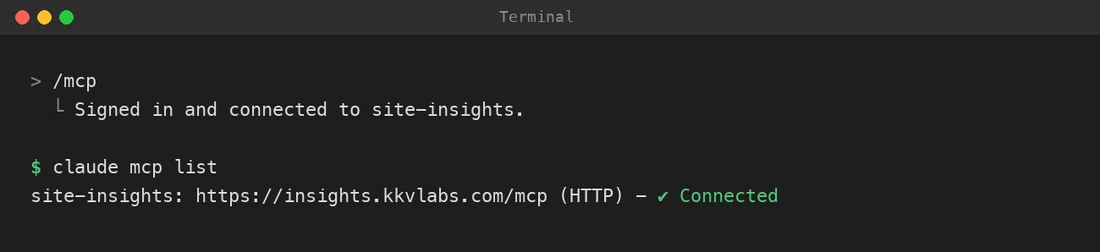
Signed in and connected to site-insights, and claude mcp list showing Connected. Example details only. - Step 5
Switch on your sites
Open your Site Insights account page. Every GA4 property and Search Console site your Google account can see is listed and paired by domain. Switch on the sites Claude Code may read: 1 on the Free plan, 10 on Pro, 50 on Agency.
Do this before you ask. If no site is switched on, the answer says the site is not connected.
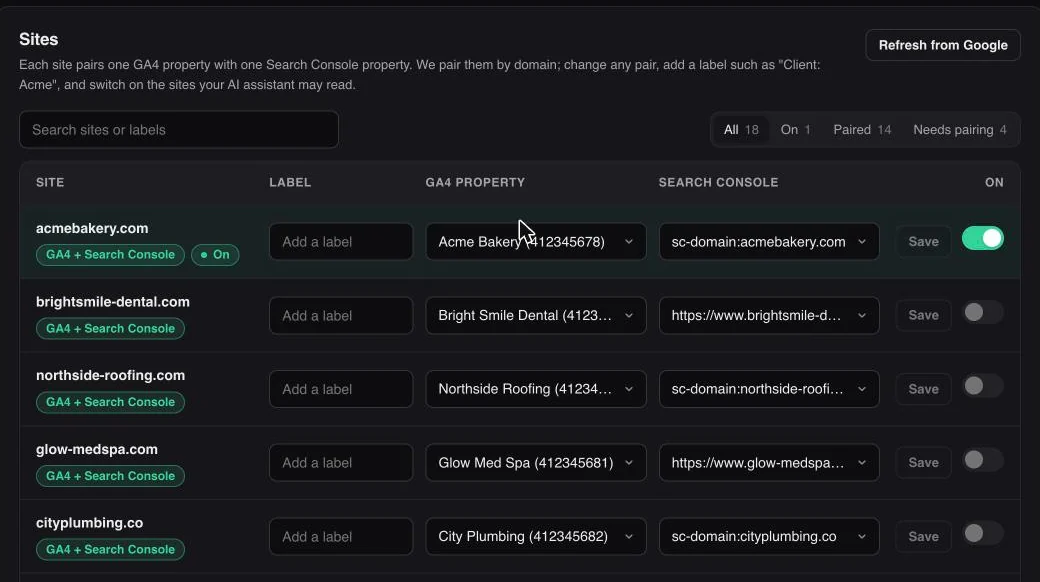
Site Insights sites list with one example site switched on. Example details only.
Scopes
User, project or local.
The command in step 1 uses --scope user. Leave --scope out and Claude Code uses local. The scope decides where the server is saved and who gets it. Sign in is always per person.
--scope local
The default if you leave out --scope. Only in the project folder you ran it in, private to you.
--scope user
Every project on your machine, private to you. The best fit if you check sites from any folder.
--scope project
Saved in .mcp.json in the project, so your team gets it through git. Each person still signs in with their own Google account, and Claude Code asks each person to approve the server first.
claude mcp add --transport http site-insights https://insights.kkvlabs.com/mcpclaude mcp add --transport http --scope project site-insights https://insights.kkvlabs.com/mcpQuestions to try
Ask in plain English.
Claude Code can also work with the files in your project, so it can save results to a file or check your own sitemap against Google. Every tool is listed on the Google Analytics MCP and Search Console MCP pages.
- “Which of my sites lost the most Google clicks this week, and on which pages?”
- “Show quick wins for example.com: queries in positions 4 to 20 with a low click through rate.”
- “Is /pricing on example.com indexed? Which canonical did Google pick?”
- “How many visits did ChatGPT and Perplexity send each of my sites in the last 90 days?”
- “Save my top 500 Search Console queries for example.com this month to queries.csv.”
- “Compare the URLs in ./public/sitemap.xml with what Google has indexed for example.com.”
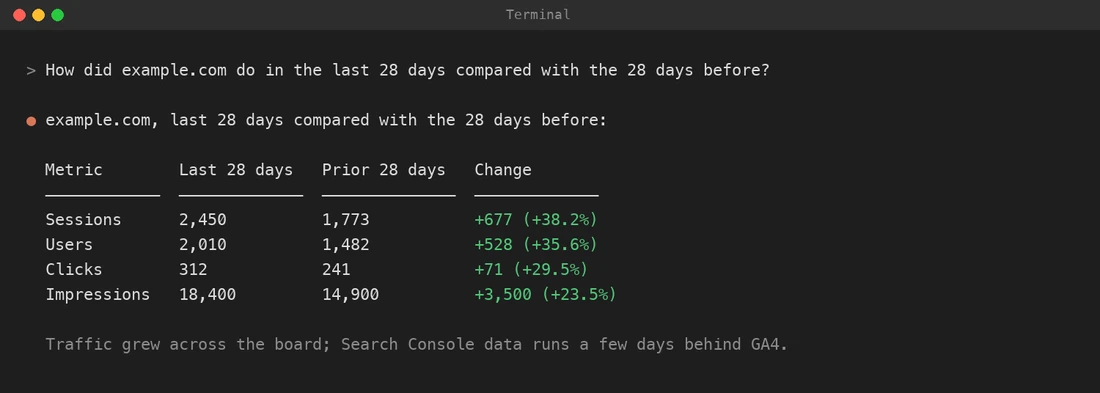
Ready made prompts as commands
Type / in Claude Code to see the Site Insights prompts, listed as /site-insights:weekly_site_check and the like. Run one with a site name after it:
/mcp__site-insights__weekly_site_check example.comThe others: why_traffic_dropped, quick_wins_this_month, ai_traffic_report and client_summary_all_sites.
mcp__site-insights__*Running Claude Code without the chat, in a script? Allow the tool on the command line:
claude -p "How did example.com do last week?" --allowedTools mcp__site-insights__site_overviewTroubleshooting
If it does not connect.
Still stuck? Email support@kkvlabs.com with the step you were on.
- Site Insights shows Needs authentication
- Type /mcp in Claude Code, pick site-insights and sign in again. If Google access was removed, the next call asks you to sign in too.
- Claude says there are no sites
- Either you signed in with a Google account that cannot see your properties, or no site is switched on yet. Check insights.kkvlabs.com/account.
- A project scoped server is pending approval
- Claude Code asks before it uses a server from a project's .mcp.json. Start claude in that folder and approve it. claude mcp reset-project-choices resets those choices.
- You have used all your lookups for today
- The Free plan allows 10 tool calls a day, and the count resets at midnight UTC. Pro and Agency have no daily limit under fair use.
- How do I remove it?
- Run claude mcp logout site-insights, then claude mcp remove site-insights. To revoke Google access too, use Disconnect or Delete all my data on your Site Insights account page.
Want to run Google's own server instead? Our Google Analytics MCP setup guide walks through analytics-mcp step by step.
Questions
Search Console and GA4 in Claude Code: questions.
Can Claude Code read Google Search Console?
Is there a Google Analytics skill for Claude Code?
Which scope should I use, user or project?
Do I need a Google Cloud project or credentials file?
How do I stop Claude Code asking before each tool call?
Is it read only?
Does it cost anything?
Start now
Ask your first question in two minutes.
Free for one site, with every tool. Add more sites when you need them.
Already connected? Manage your sites
BetaGoogle is still reviewing Site Insights. Until it's done, Google may show an 'unverified app' warning when you sign in. That's expected and safe: choose 'Go to Site Insights by KKV Labs' to continue.
Site Insights is made by KKV Labs, an AI search agency. Want ChatGPT and Google AI to recommend your business? Get a free AI visibility check.